How to disconnect your Instagram account and connect a different one
A step-by-step, illustrated guide to removing your current Instagram account from GoExplorer and linking a new one with a fresh login.
Connecting & Disconnecting
Things to know before you switch
- Your old handle stays with your account. Once a handle is linked, it is tied to your GoExplorer account for good. You can add it back to this account anytime, but it cannot move to a different account. Learn how account linking works.
- The new handle must be free. If the new Instagram account is already linked to another GoExplorer account, it cannot be connected to yours.
- No second connection bonus. The 2,000-coin Instagram bonus is paid once per account, so switching handles does not award it again. More on coins and reconnecting.
- Want both? You do not have to disconnect at all. One GoExplorer account can hold several Instagram handles. See multiple handles.
Part 1: Disconnect your current account in GoExplorer
Open the GoExplorer app, go to your account settings, open linked channels, and remove the Instagram account you no longer want connected.
Part 2: Remove GoExplorer from your old Instagram account
This clears the old authorisation on Instagram's side, so Instagram does not quietly reconnect your old account when you link the new one. Do these steps while you are logged in to your old Instagram account.
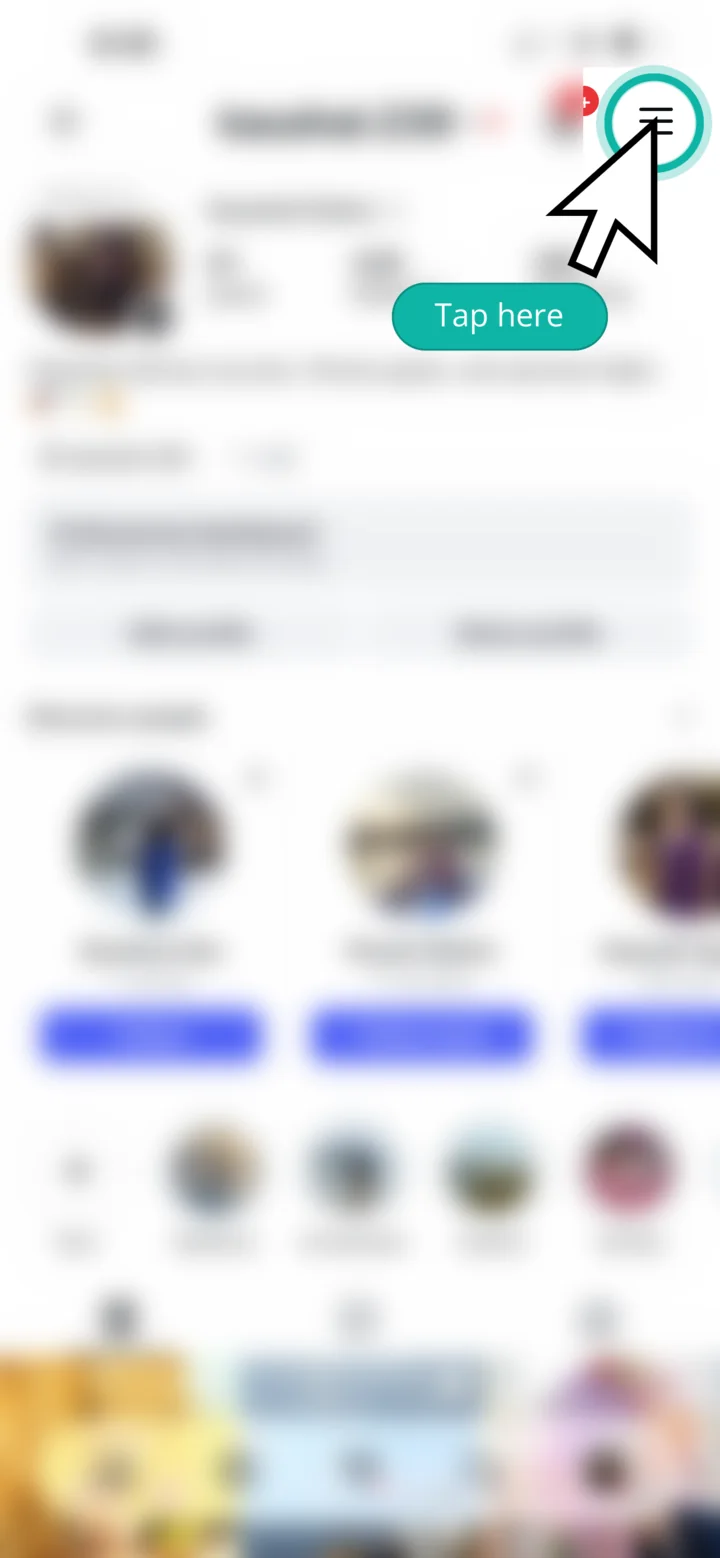
1. Open the Instagram menu
On your old account's Instagram profile, tap the three lines in the top-right corner.
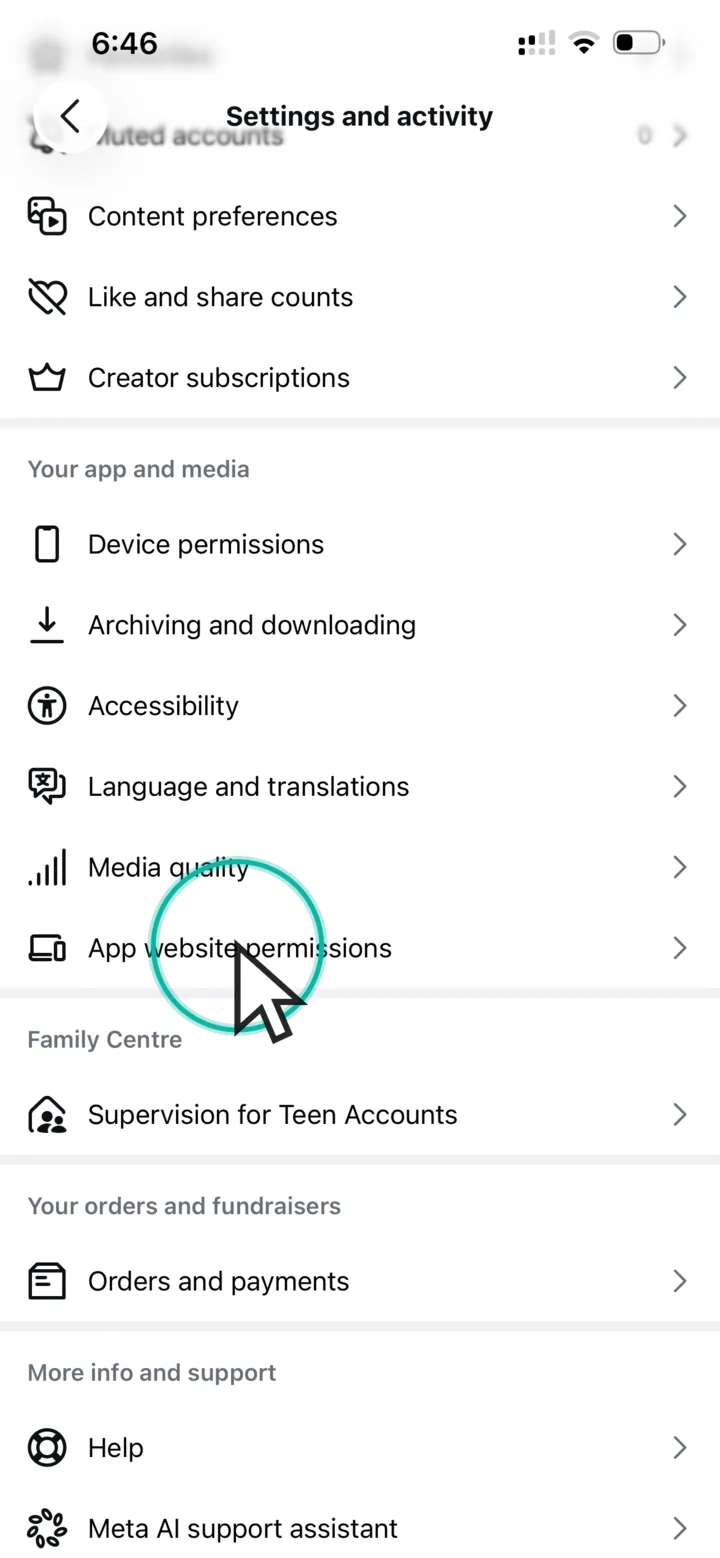
2. Go to "App website permissions"
In Settings and activity, scroll to App website permissions and tap it.
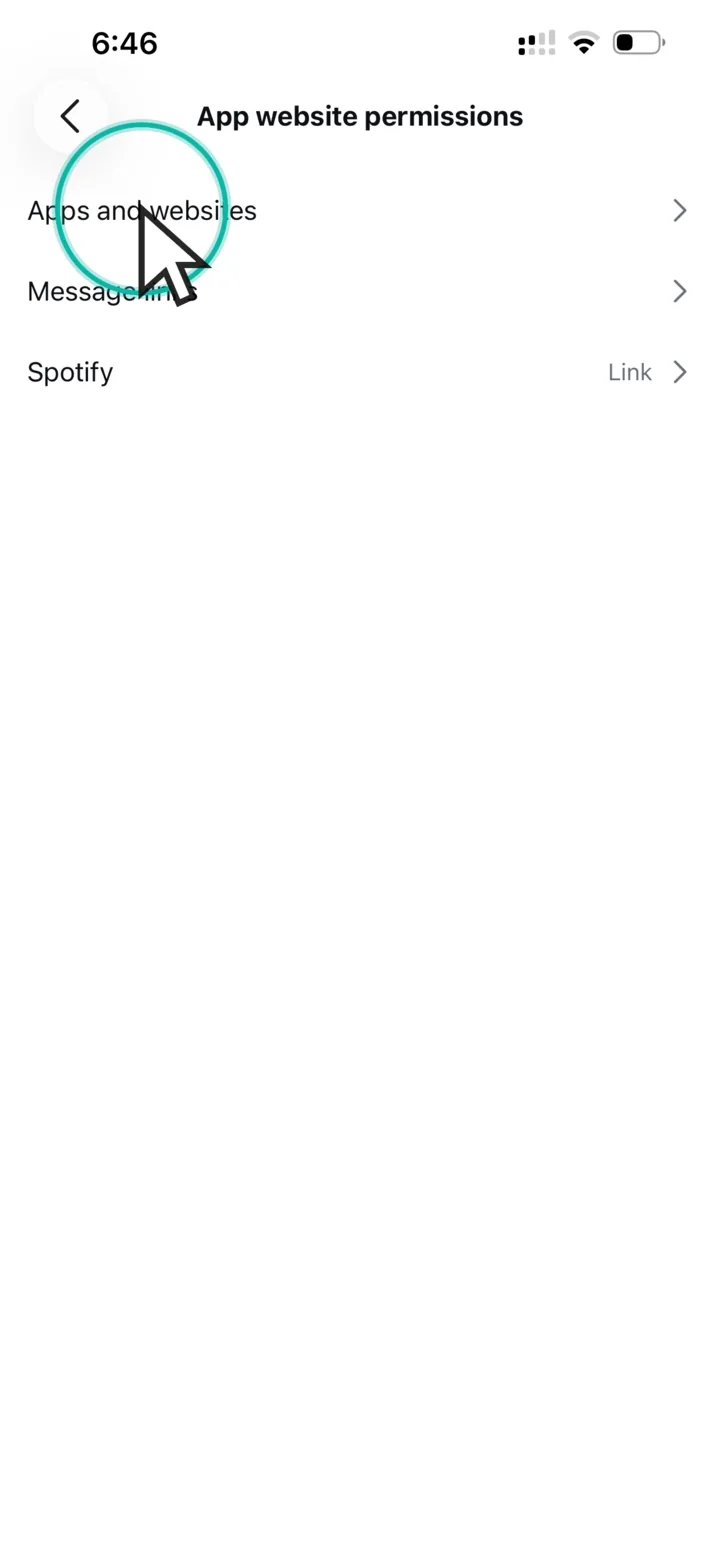
3. Open "Apps and websites"
Tap Apps and websites to see everything connected to this Instagram account.
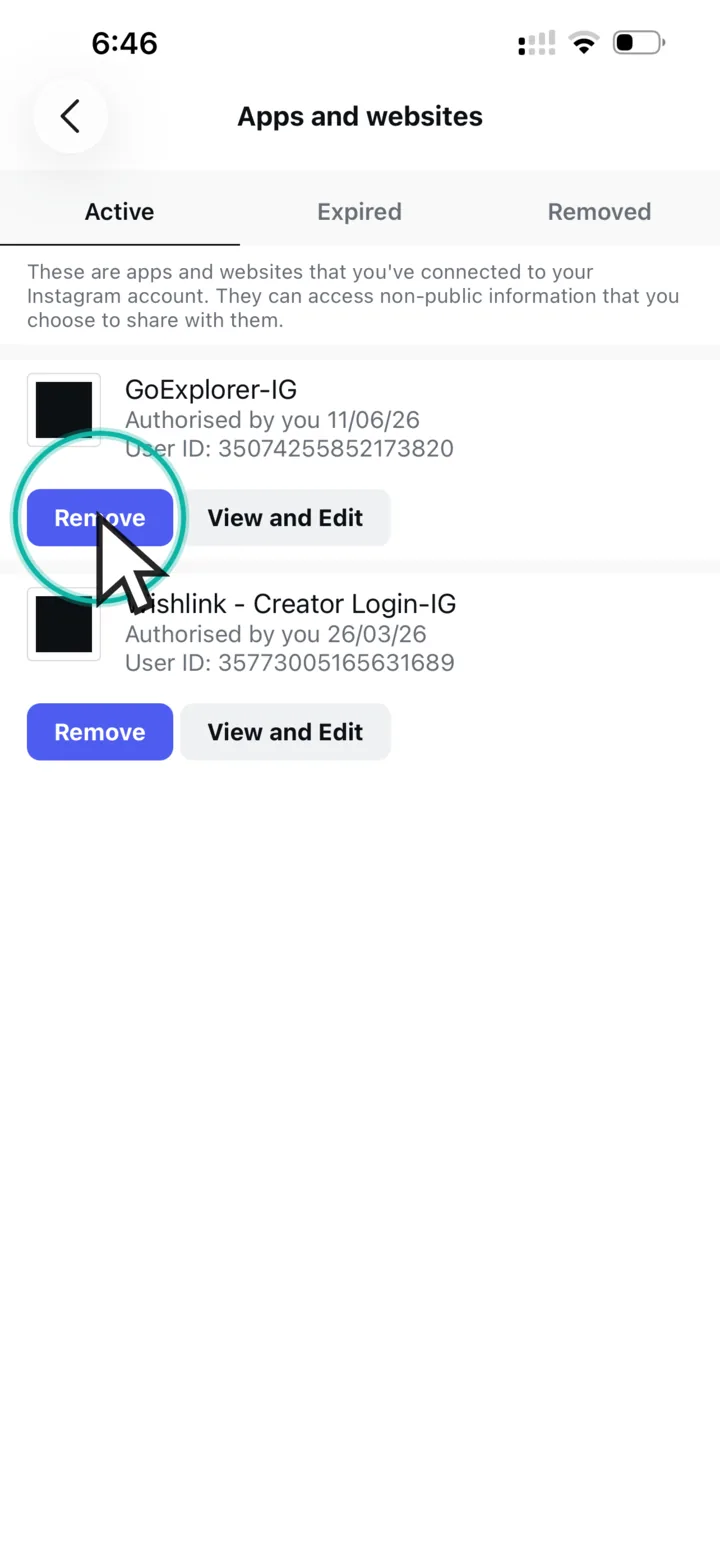
4. Remove GoExplorer
Find GoExplorer-IG in the list and tap Remove. Your old account is now fully disconnected.
Part 3: Connect your new Instagram account
Go back to the GoExplorer app and start connecting Instagram again. When Instagram's login opens, follow these three steps.
1. Tap "Use another profile"
Your saved profiles appear at the top, and your old account is often one of them. Do not tap any saved profile. Scroll down and tap Use another profile.
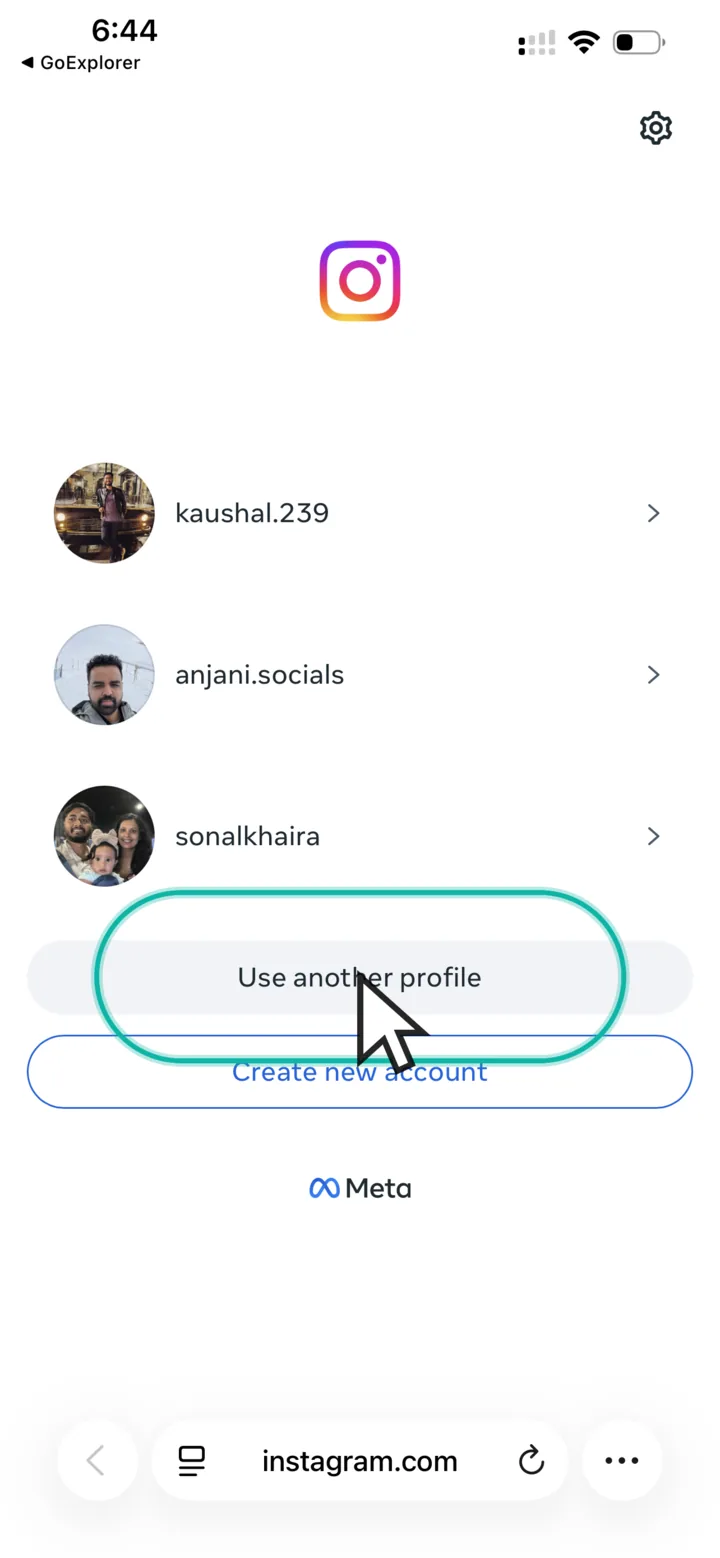
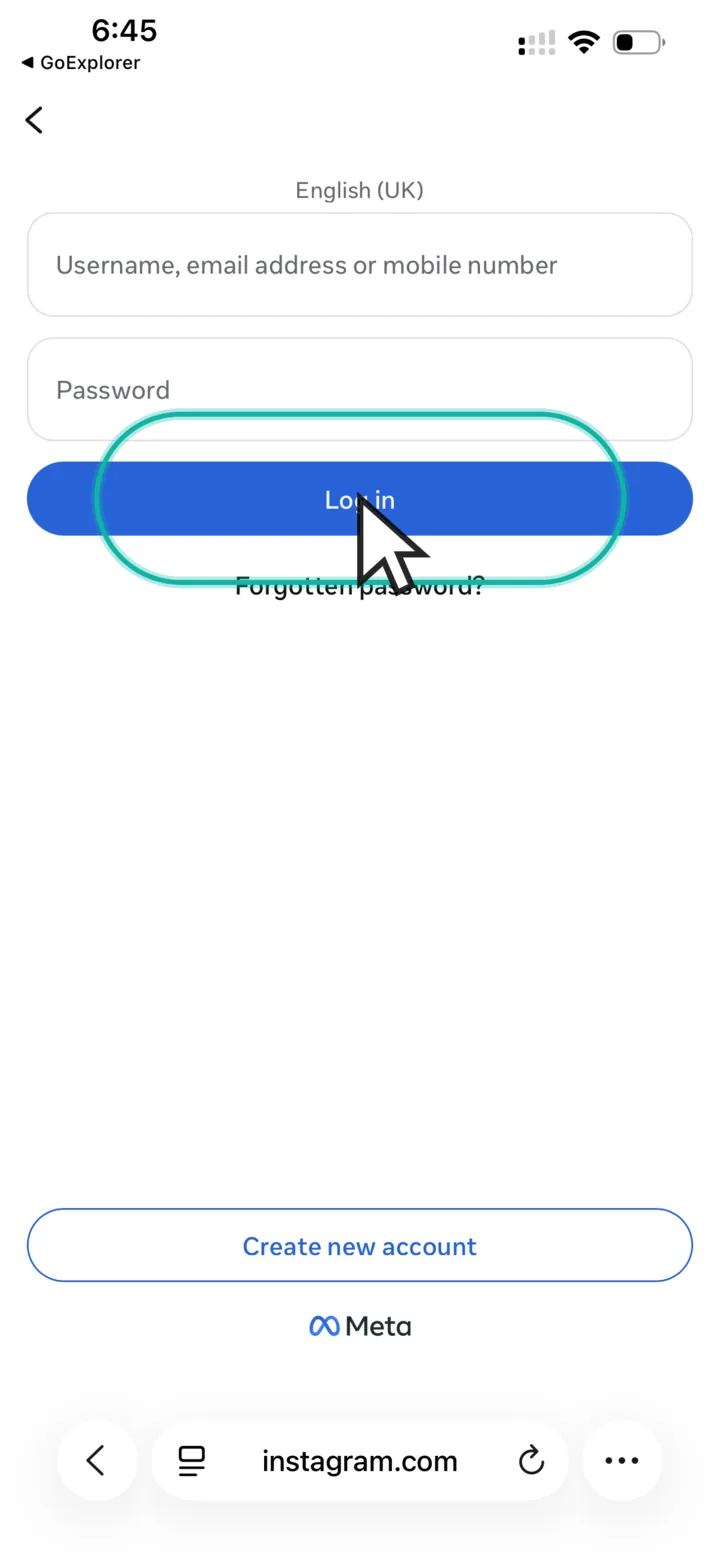
2. Log in with your new account
Enter the username and password of your new Instagram account and tap Log in. You are typing into Instagram's own login screen, so GoExplorer never sees or stores your password.
3. Keep all permissions on and tap "Allow"
Keep every toggle switched on and tap Allow. Your analytics, rewards, and GoConnect automations only work correctly when all permissions are enabled. See what each permission does.
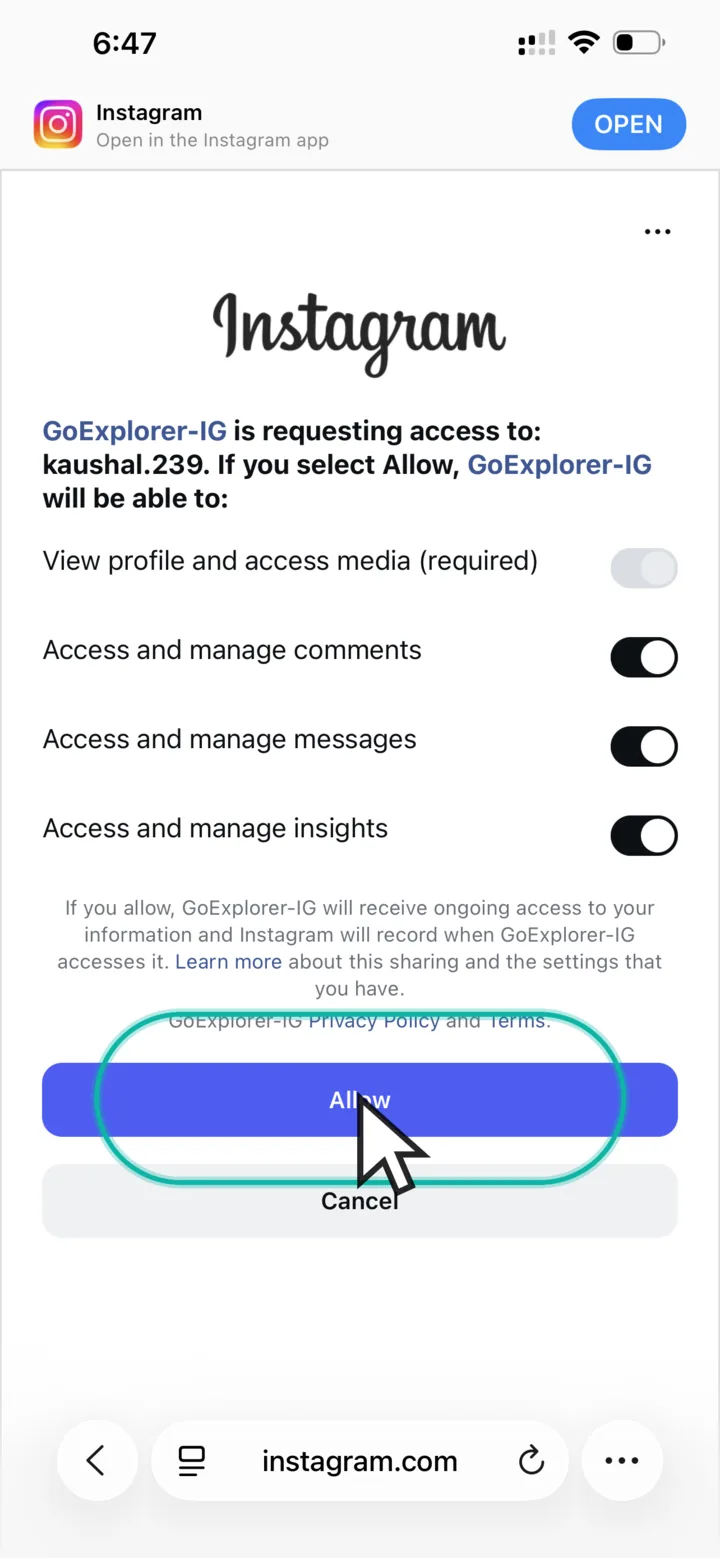
Instagram takes you back to GoExplorer, and your new account is connected. Check linked channels in your account settings to confirm the new handle is showing.
Old account still showing up?
- You tapped a saved profile. Disconnect again in GoExplorer and repeat Part 3, choosing Use another profile this time.
- GoExplorer was not removed on Instagram. Repeat Part 2 on your old account, then connect again.
- The new handle will not connect. It may already be linked to a different GoExplorer account. Each handle can belong to only one account.