How to connect your Instagram account to GoExplorer
A step-by-step, illustrated guide: log in fresh with Use another profile, allow all permissions, and fix connection errors.
Connecting & Disconnecting
Step 1: Tap "Use another profile"
When the Instagram screen opens, you will see your saved profiles listed at the top. Do not tap any of those. Scroll down and tap Use another profile instead.
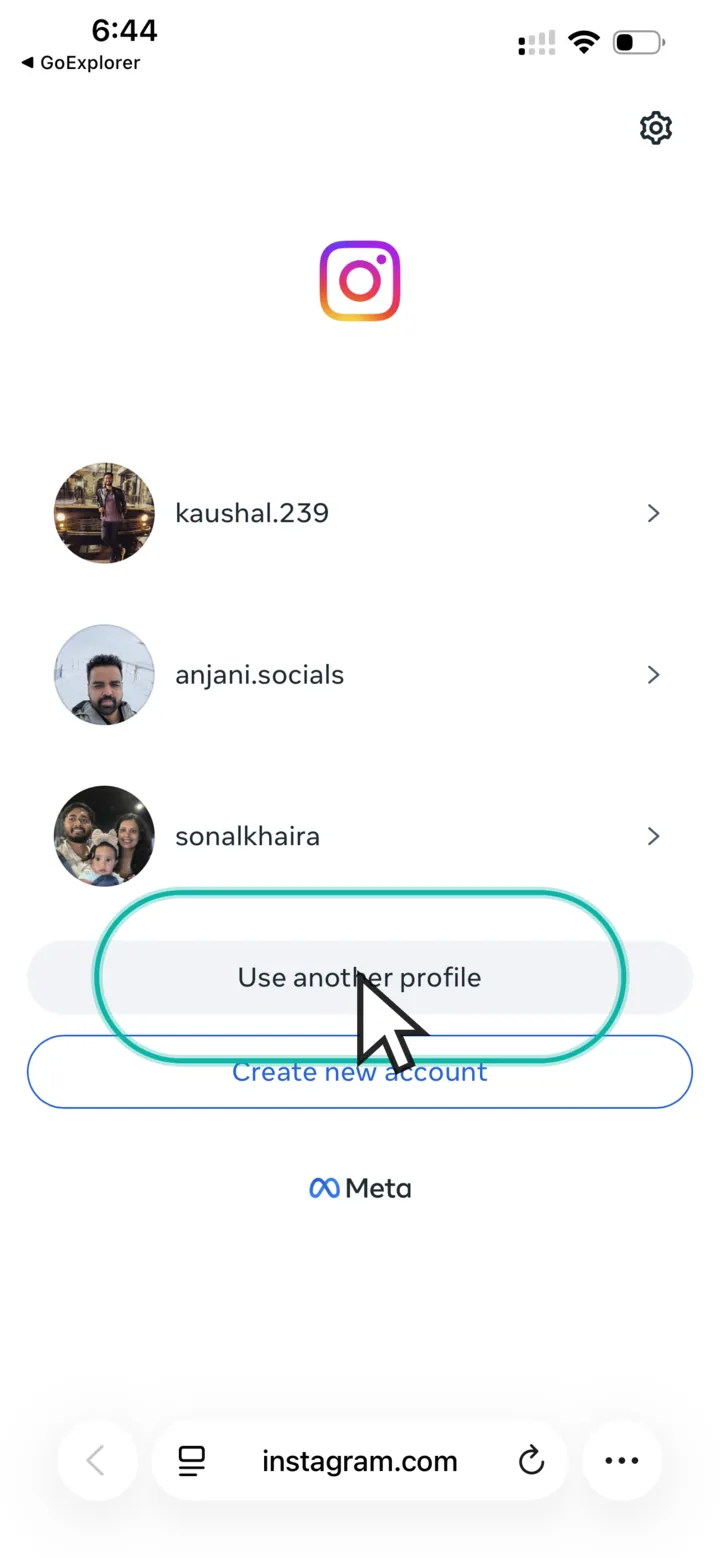
Why a fresh login is required: the saved profiles you see are signed in for browsing Instagram, not for securely authorising a connected app. To link your account safely, Instagram needs a fresh, verified sign-in so it can confirm it is really you and grant GoExplorer the correct, account-specific permission. Tapping a saved profile skips this verification step, which is why those attempts usually do not go through. A clean login through Use another profile is the reliable path every time.
Step 2: Enter your username and password, then tap "Log in"
Type the username and password of the Instagram account you want to connect, and tap Log in.
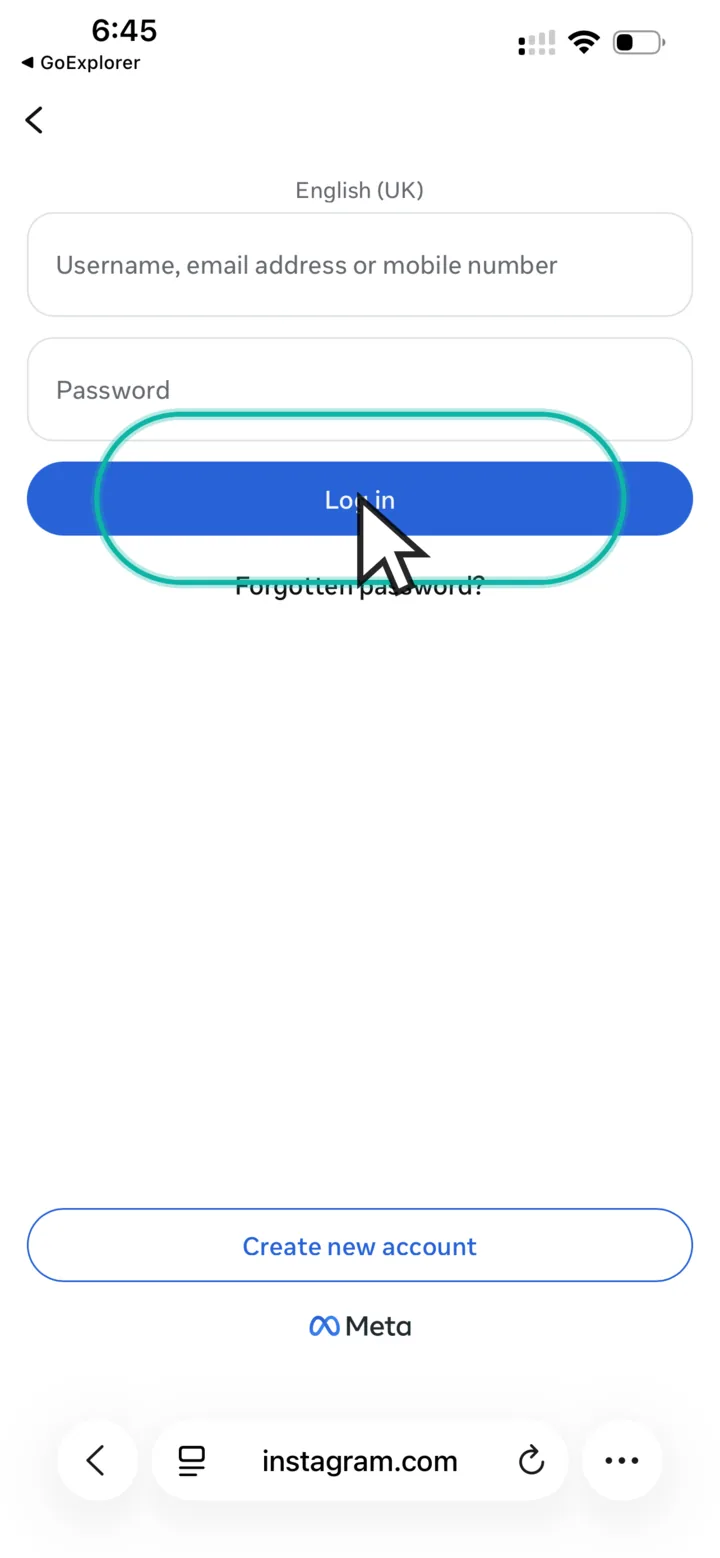
You are typing your details directly into Instagram's own login screen, not into GoExplorer. We never receive, see, or store your password. Instagram simply confirms it is you and then asks what you would like to share in the next step.
Step 3: Allow access so your analytics work correctly
After you log in, Instagram shows an access screen. Please keep all the toggles on and tap Allow. Each permission powers a real part of your GoExplorer experience.
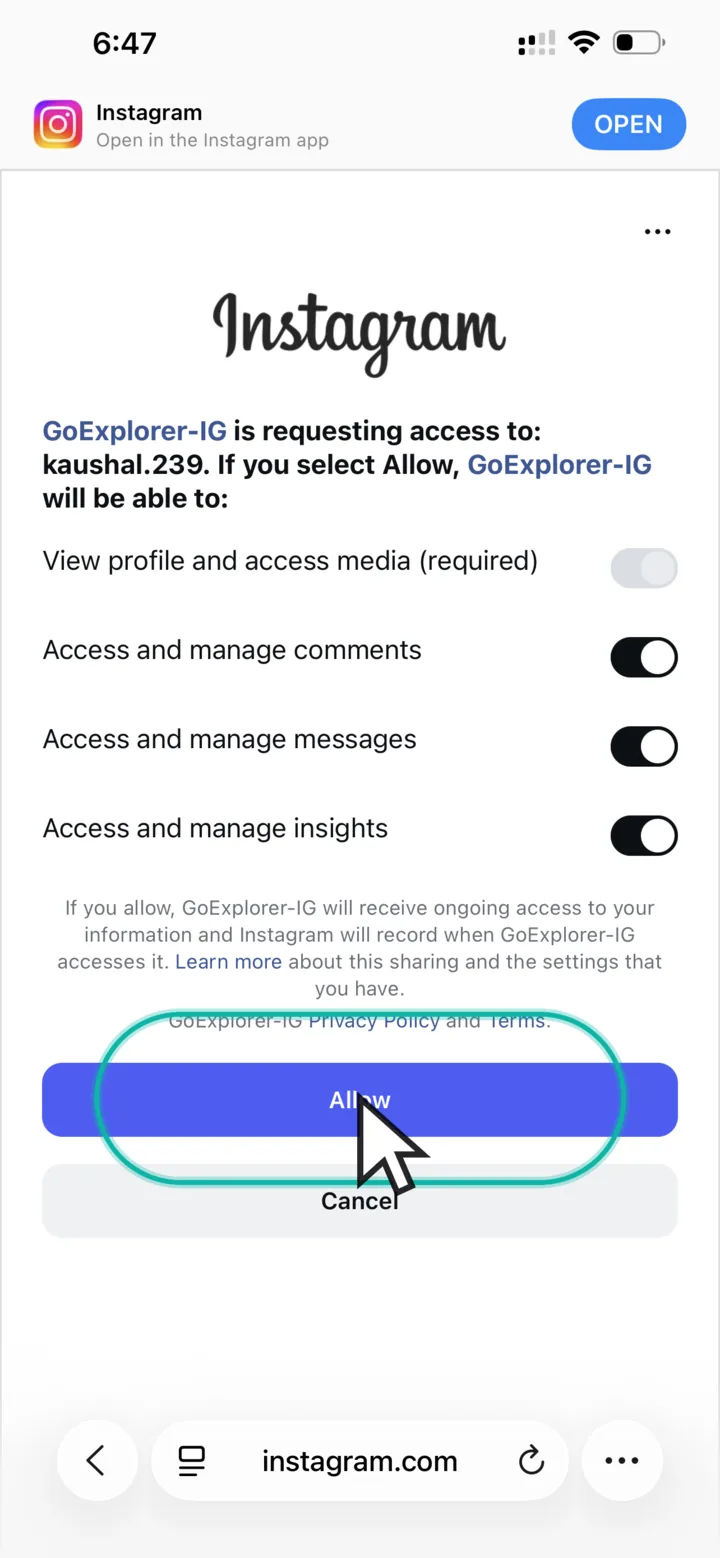
- View profile and access media (required): reads your public profile and posts so we can show your handle, follower count, and recent content, and match you with the right collabs.
- Access and manage comments: powers GoConnect, your comment-to-DM automation. When a follower comments your keyword, GoConnect can reply with your link or itinerary automatically.
- Access and manage messages: lets GoConnect send those automated DMs on your behalf, so your audience gets instant replies without you lifting a finger.
- Access and manage insights: reads your reach and engagement metrics so your dashboard, performance bonuses, and deal matching stay accurate.
Why all of them matter: each permission unlocks a specific feature. Your analytics, your reward calculations, and your GoConnect automations only work correctly when all of them are enabled. If any are switched off, parts of your dashboard or your auto-DMs may not function.
That is it. Once you tap Allow, Instagram takes you straight back to GoExplorer and your account is connected.
Having trouble connecting? Remove GoExplorer and try again
If you hit an error after logging in and your account will not connect, there is a simple fix: remove the earlier GoExplorer authorisation from Instagram, then connect again. This clears any half-finished connection so a fresh, clean one can take its place.
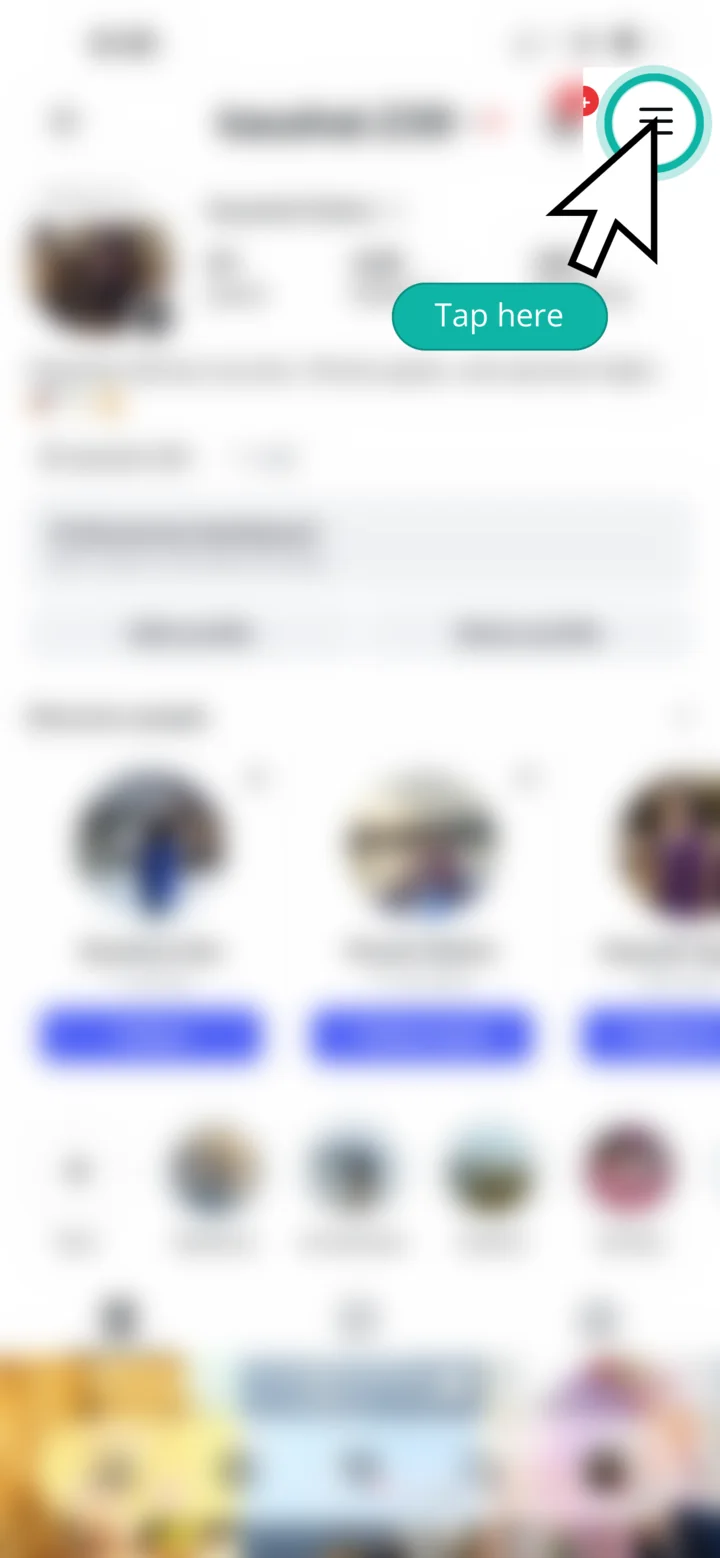
1. Open the Instagram menu
On your Instagram profile, tap the three lines in the top-right corner.
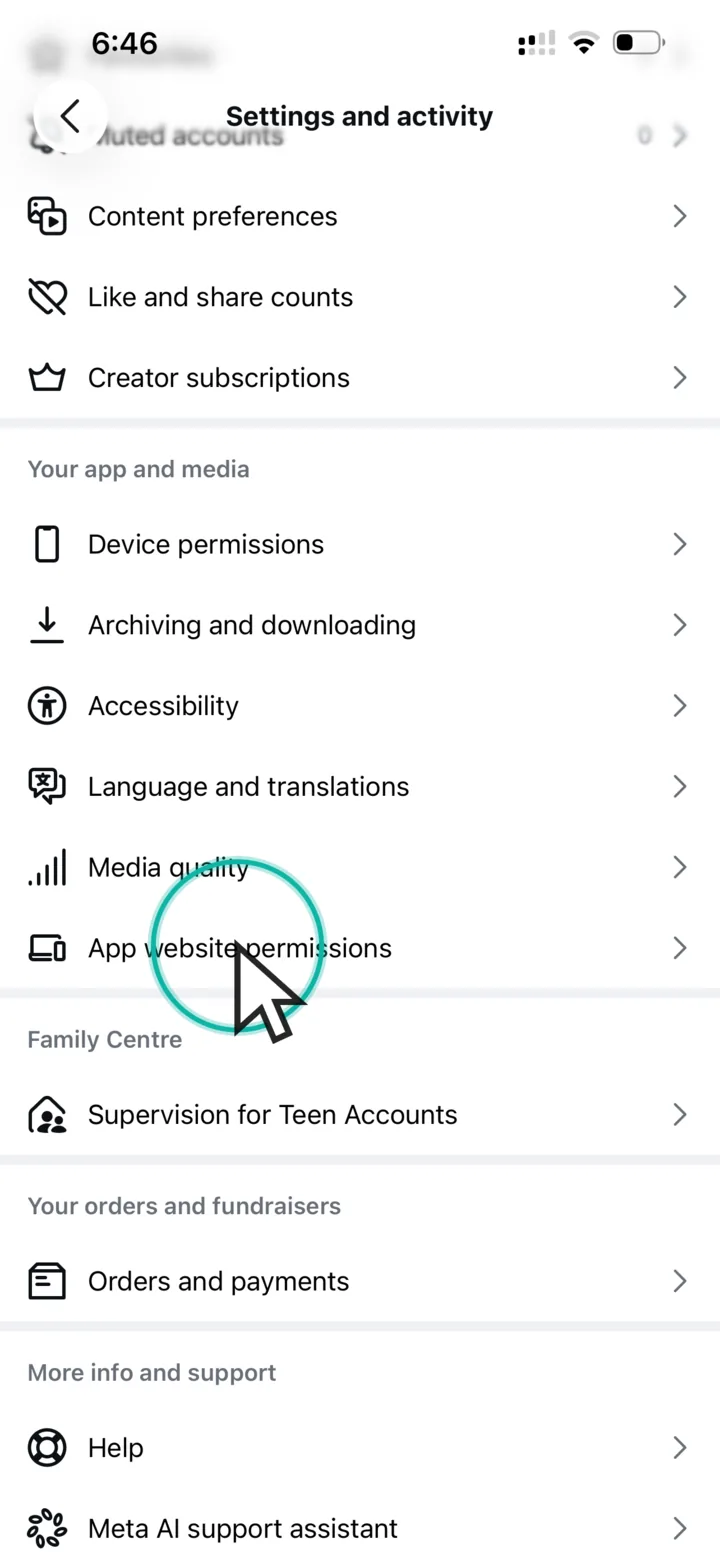
2. Go to "App website permissions"
In Settings and activity, scroll to App website permissions and tap it.
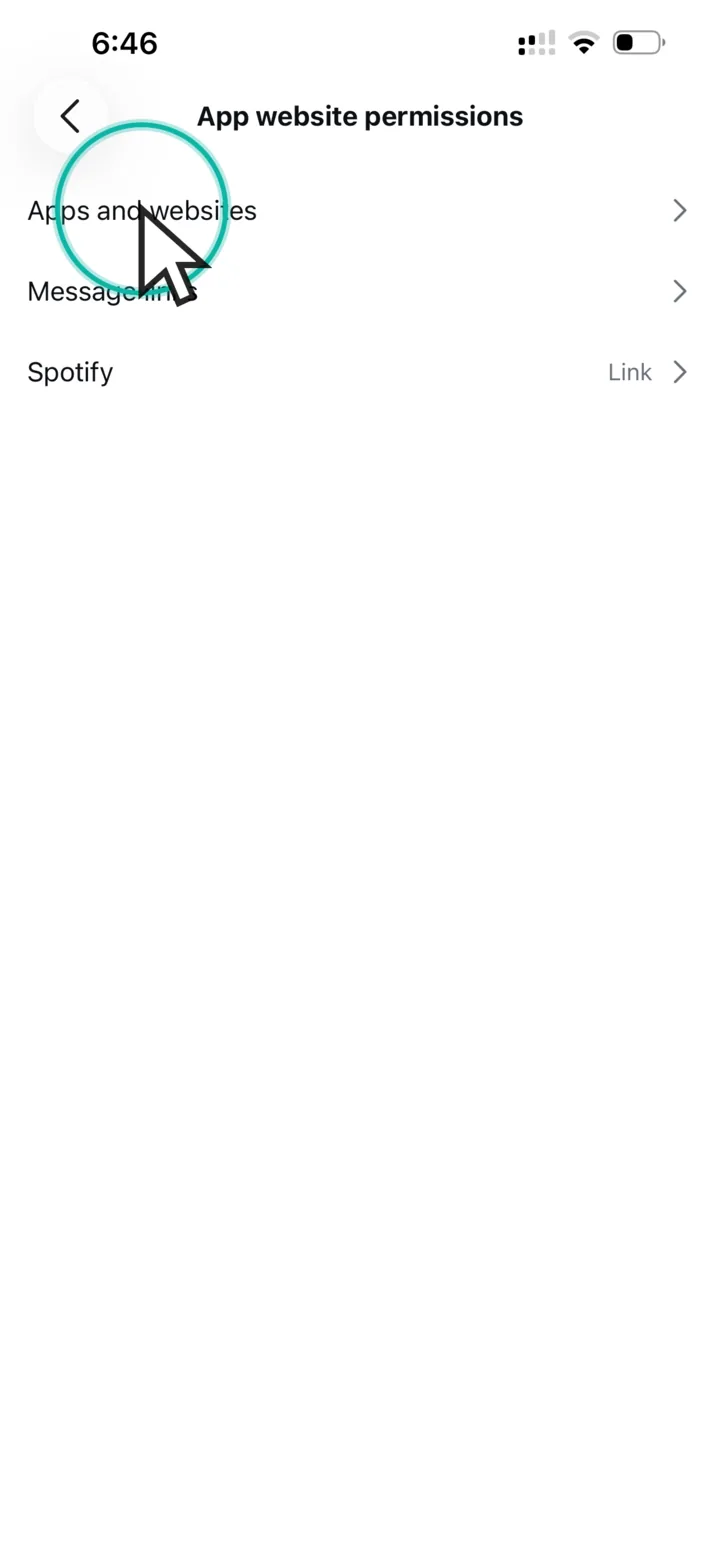
3. Open "Apps and websites"
Tap Apps and websites to see everything connected to your Instagram account.
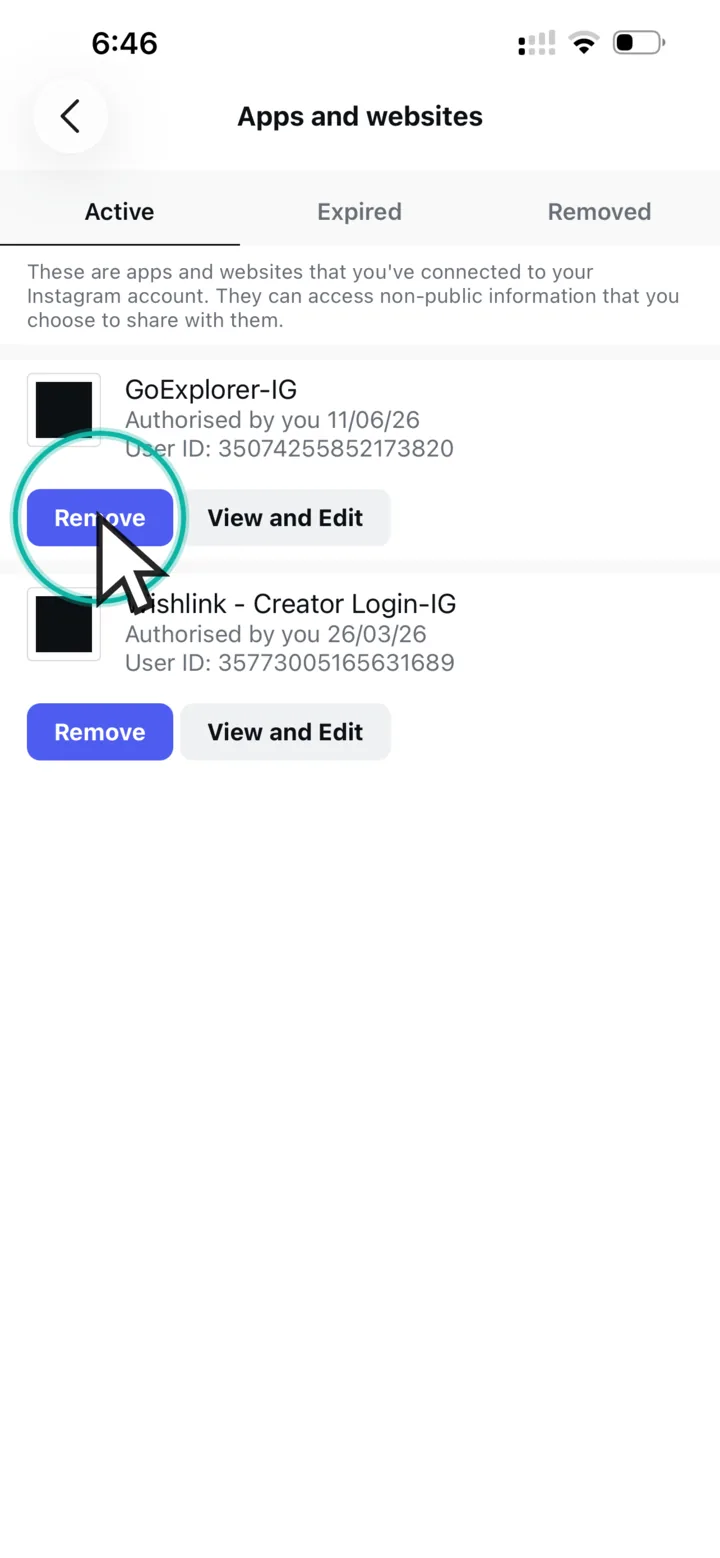
4. Remove GoExplorer
Find GoExplorer-IG in the list and tap Remove.
5. Connect again
Now return to the GoExplorer app and start the connection again from Step 1, remembering to choose Use another profile for a fresh login. This second attempt almost always goes through smoothly.
Why connecting to GoExplorer is safe
- Reviewed and approved by Meta. GoExplorer can only request these permissions because Meta has reviewed our integration and approved it as safe.
- Distributed through trusted app stores. The GoExplorer app is published on Google Play and the App Store, each of which reviews apps against strict security and privacy standards before approval.
- You are always in control. You log in on Instagram's own screen, we never see your password, and you can review or revoke GoExplorer's access at any time using the steps above.
- Permissions exist to help you. Every permission powers a creator feature, your analytics, rewards, and GoConnect automations, and nothing more.
- Trusted by creators across India, including leading travel creators and mega-influencers.